Map and cards
Moving around the map, choosing the level of detail, keeping the flows that matter, and reading the cards.
Globe or flat map
3D shows an orthographic globe: drag to turn it. 2D shows a flat map: drag to move it. In both, scroll or use + and − to zoom. On the flat map, the Path setting in the Format pane chooses between the Shortest route (the great circle, curved on a flat map) and a Direct line.
When the report opens, the camera frames the flows. Lock view, in Options, stops any automatic reframing; the Format pane card Camera also has Fit on load and Fit on selection.
Levels of detail
Flows can be grouped by Continents, Countries or Cities/Ports. In the default Auto display mode, the level follows the zoom, and so do the layers - borders, labels, country names. It never goes coarser than the level where there is still something to draw, so flows inside a single country do not vanish at country level.
Switch Display mode to Manual, in Options, to fix the level with Group by and to choose the layers yourself.
Keeping what matters
| Setting | What it does |
|---|---|
| Routes shown | Keeps the N largest flows. all by default. |
| Minimum value | Hides flows below a value. |
| Cover % of volume Premium | Keeps only the largest corridors that together carry the chosen share of the total. At 0 it is off. For a reader without a plan it keeps every flow. |
| Render limit | In the Format pane. How many flows are drawn at most - 2,000 by default, 5,000 at the most. The largest are always drawn first. |
Filtered flows are not lost: Diagnostics counts them, and the panel at the top left gives their number whenever it is open. A flow's card gives its share of the flows shown, and a place card adds its share of the full network when filters hide part of it.
Reciprocal flows
When two places send flows to each other, Split draws both arcs. Net replaces them with a single arc in the dominant direction, as thick as the difference. The setting is in Options, under Reciprocal flows, and in the Format pane card Flows shown.
Net says what it does. Once a pair of opposite flows has been netted, the legend reads thickness: [Value field name] · Net; the card of that arc says Net next to the share and lists the total of each direction below the balance, so that nothing is absorbed without a word. Net needs a Value measure: without one there is no balance to draw, and the setting is greyed in Options, with the reason on hover. Places with no flow in the opposite direction are drawn as they are.
Bundling
Around a hub, many flows leave in the same direction. Bundle gathers flows that share an endpoint and a heading - within a 60° cone - onto a common trunk. The Bundle button, bottom right, switches it on and off; the Bundle flows slider in Options sets how far it goes, and Bundle around in the Format pane chooses the end they gather around: the origin, the destination, or the busiest of the two. Paths become schematic, and the visual says so. Bundling applies to the Value view only: in the other views colour already carries a meaning that a single-colour trunk would contradict, so the button is greyed there and says why. Click a trunk to select every flow it carries. A trunk whose flows share one colour keeps that colour; a trunk that mixes categories is drawn in slate, and the legend names it Shared leg.
Cards
Hover is light, click is complete. A click pins the card; drag it by its header, or move it with the arrow keys once its header has focus (Enter puts it back), and close it with Esc.
A flow
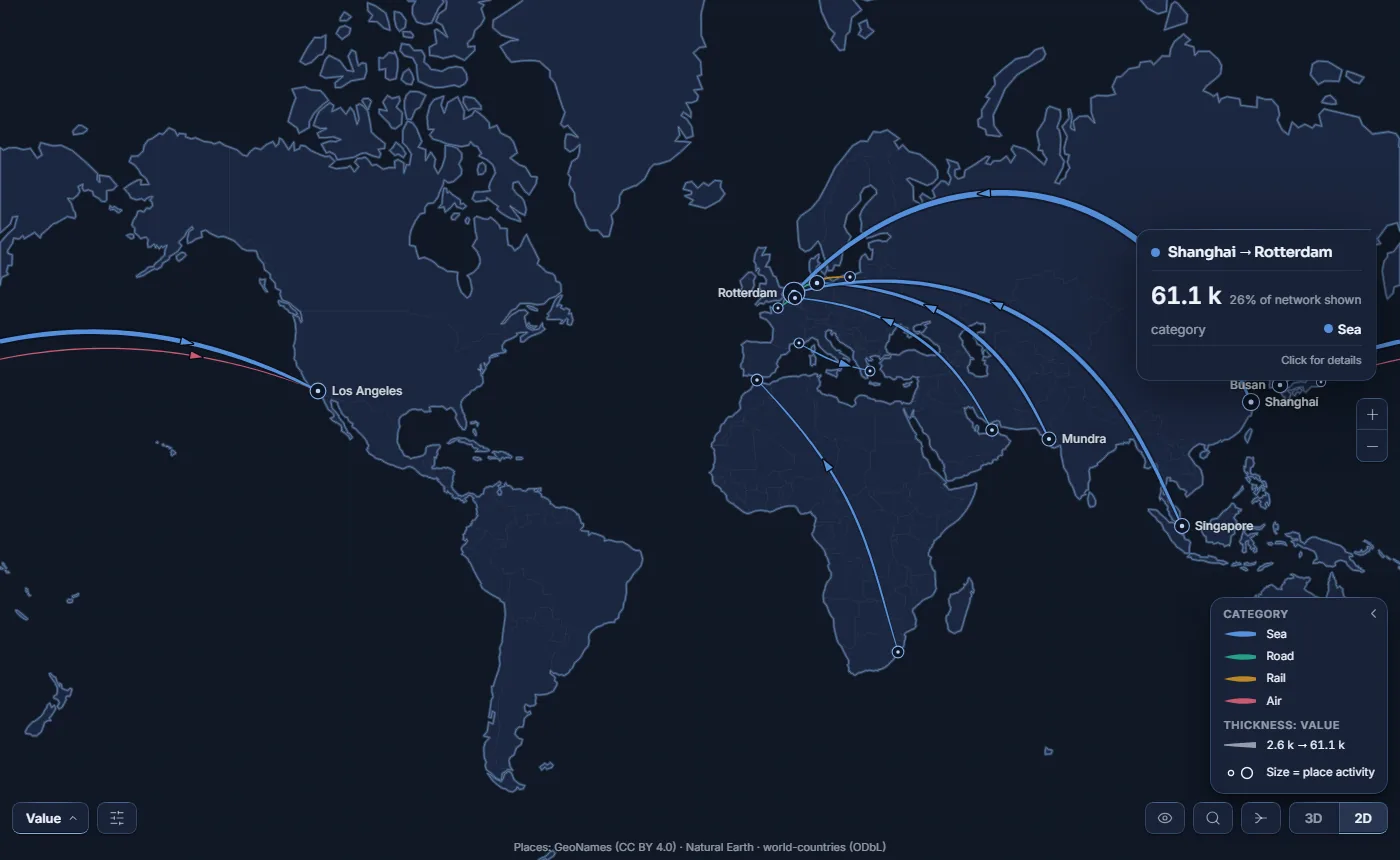
On hover: origin → destination, the value and its share of the flows shown, what the current view encodes - the category, the variance, the change or the extra field - and the columns of the Tooltips well. The click card adds the objective or the previous value, the distance, the rank among the flows shown, the full category breakdown, and the list of other flows that pass under the pointer at the same spot. On a small visual, cards keep only the essentials.
A place
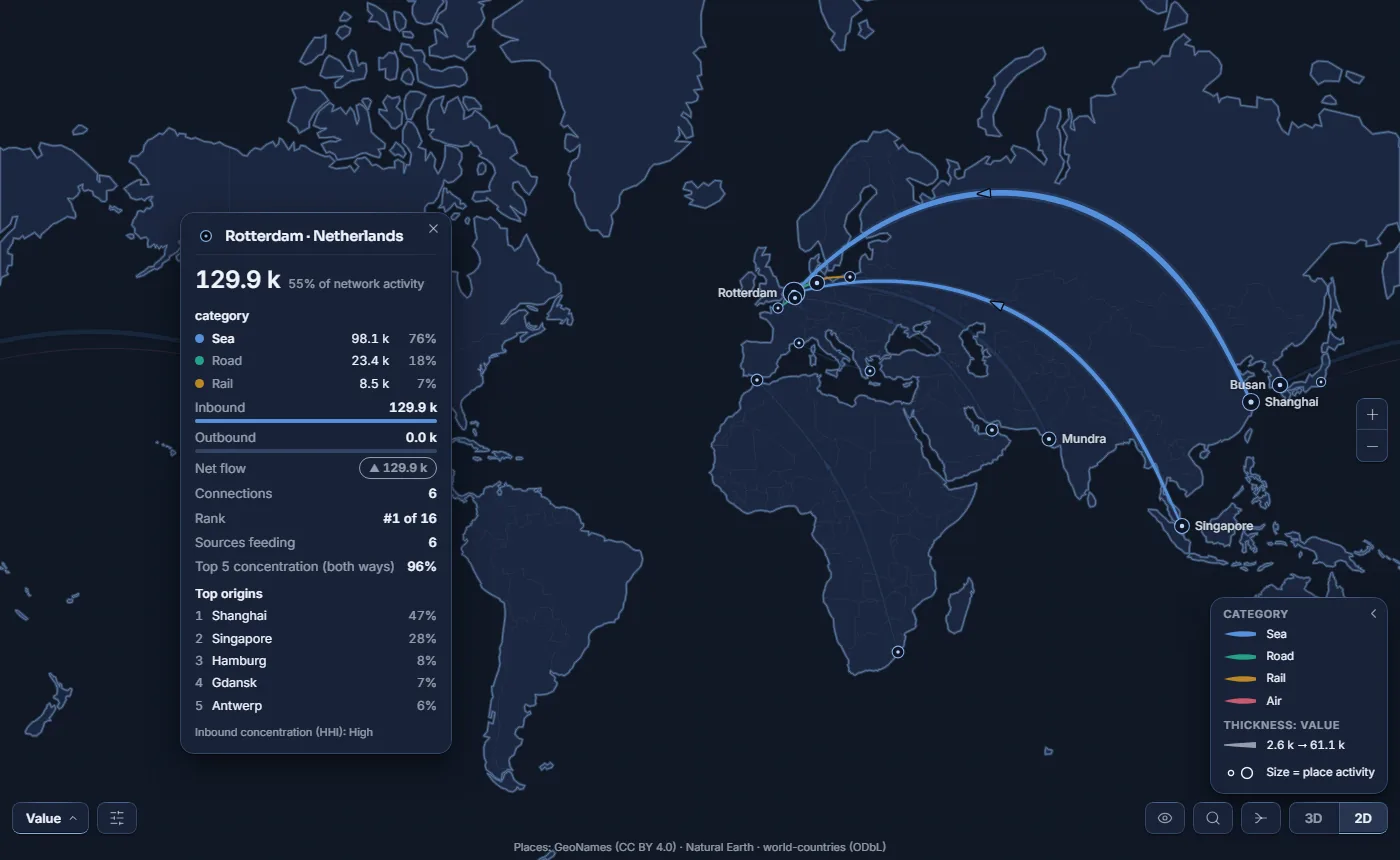
On hover: total activity and its share, the line of the current view, inbound and outbound bars in the Value view, and internal flows if any. The click card adds the bars in every view, the net flow, the number of connections and the rank.
Dependency analysis
On by default; you can switch it off in the Format pane, card Nodes. The click card of a place adds, across the full network: the destinations it serves and the sources that feed it, its top five origins and destinations with their shares, and two indices Premium: the share of its five largest flows in both directions (Top 5 concentration), when it has more than five, and its inbound concentration (HHI), given as High, Medium or Low. The lists of main origins and destinations, with their shares, are free; only the two indices are Premium, and without a plan the card simply leaves them out. Whenever a destination is fed by a single origin, the card shows a Single origin (mono-source) alert naming that origin, whether or not the analysis is on.
Report page tooltips
To use your own Power BI tooltip page instead of the built-in hover card, set Rendered by to Power BI (report page tooltips) in the Format pane, card Hover, and configure the page under General › Tooltips.
Selection and cross-filtering
- Click a flow to select it: the other visuals on the page filter to it.
- Click a place to select all of its flows.
- Click a bundle trunk to select every flow it carries.
- Ctrl-click (⌘ on a Mac) adds to the selection; a click on empty space clears it.
- Right-click opens the Power BI menu - drill-through, include, exclude.
When another visual highlights part of the data, the flows concerned stand out and their card gives the highlighted amount.
Search
The magnifier opens a search box. Type part of a place or of a flow; the list updates as you type. Choose a result with the mouse or with ↑ ↓ and Enter: the map flies to it - unless Lock view is on - and it is selected, as a click would. A place or flow hidden by your filters is listed as not shown; choosing it still filters the other visuals. The first entry, Reset view, returns to the default view of the globe and forgets the saved camera position. Search covers every place and every flow up to the render limit. A name you typed that was merged into a larger place at the current level (a city at Countries level, for example) is found too, and selects the place that carries it; names that were not recognised are listed but cannot be chosen.